How can a Word (*.docx and *.rtf) document be created in C# and .NET
Dear .Net developers,
During reading this article you will find how to create a Word document using C# and .NET, and furthermore how to save it as *.docx and *.rtf.
- To get the ball rolling, let’s describe some requirements for the Word document which we want create:
- It has to be 8.5×11 inches Letter page size, with 20 mm for left and right page margins, 10 mm – from top and bottom.
- Has several paragraphs with formatted text.
- Text in paragraphs has to be formatted using bold, underline and italic styles and also has various font and size.
- The document must have a table 3*4 with various cell borders and background.
- The document must contain two pictures.
- The document must contain a header and a footer.
- The document must have page numbering in format “Page N of M”.
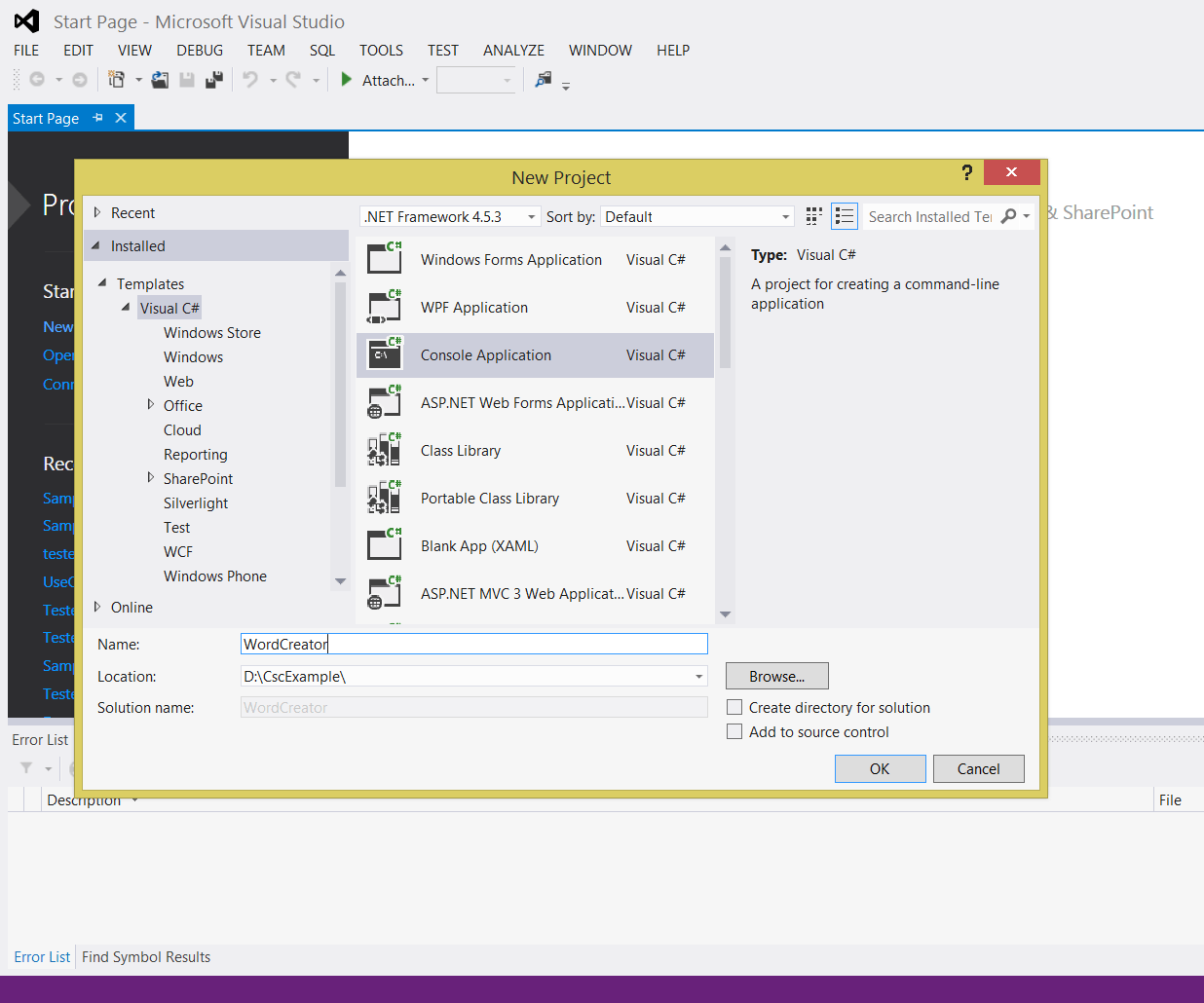
To start, open the Visual Studio and create a new C# Console Application with name “WordCreator” as shown on picture below.
To get API for creating a Word document in our app we’ll use «Document .Net» assembly. This is independent of the MS Office Automation and completely written in C# assembly. The library gives you API to process documents in various formats, like a DOCX, RTF, PDF and so forth.
Download the «Document .Net» from this page: www.sautinsoft.com/products/document/download.php.
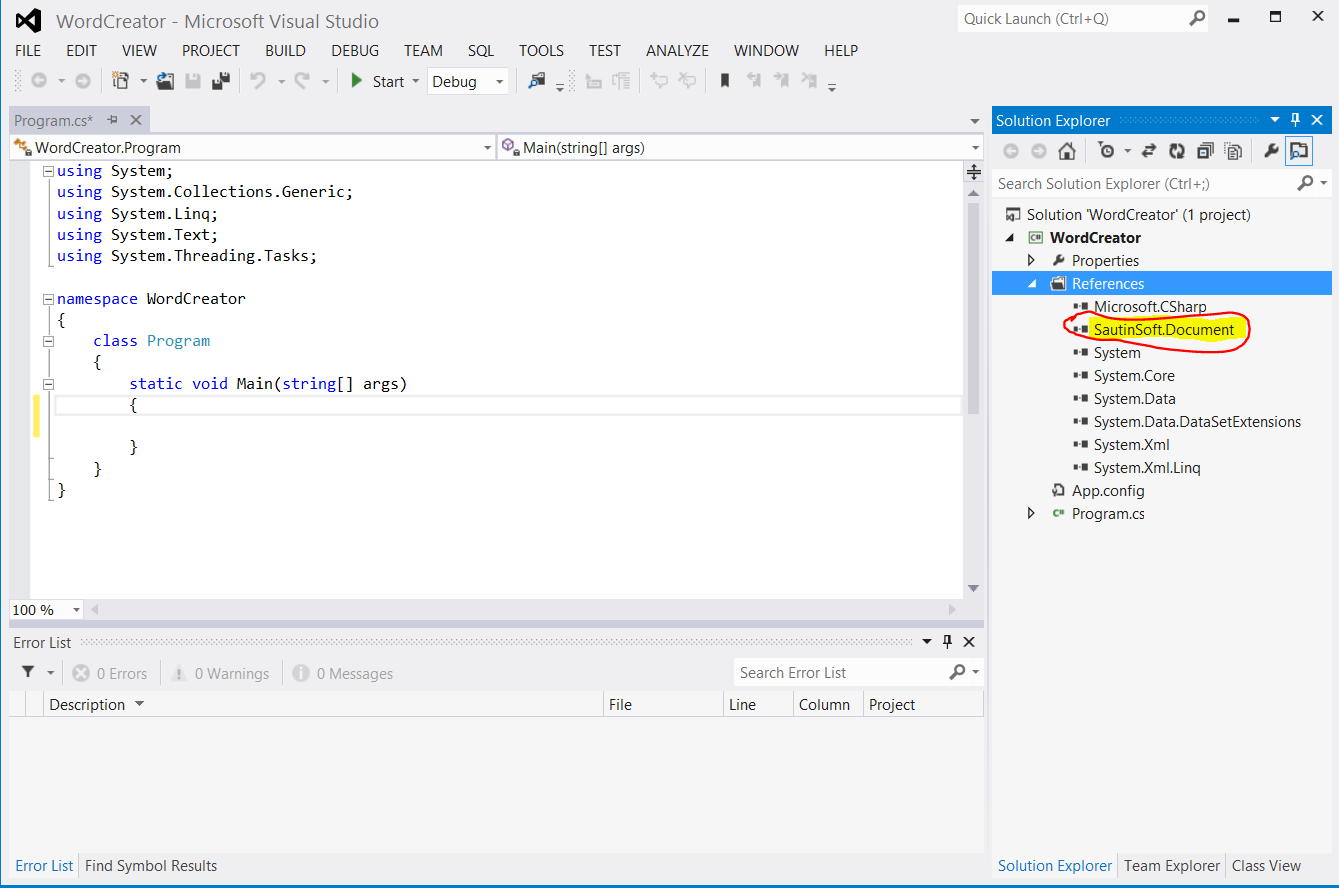
By the next step please follow to the “Solution Explorer” and add the reference to “SautinSoft.Document.dll” as shown in the picture below.
Further let’s add a new namespace, type: using SautinSoft.Document;
Now our application WordCreator is able to do with DOCX and RTF all what you want! Create a new one or open an existing document, parse a document and build the tree of objects.
1. The first requirement was: Create an empty Word document 8.5×11 inches, with 20 mm for left and right page margins, 10 mm – from top and bottom.
using System;
using System.Collections.Generic;
using SautinSoft.Document;


namespace WordCreator
{
    class Program
    {
        static void Main(string[] args)
        {
            // Let's create a new document.
            DocumentCore doc = new DocumentCore();
            //DocumentCore.Serial = "put your serial here";

            // Add a new section.
            Section section1 = new Section(doc);
            section1.PageSetup.PageWidth = LengthUnitConverter.Convert(8.5, LengthUnit.Inch, LengthUnit.Point);
            section1.PageSetup.PageHeight = LengthUnitConverter.Convert(11.0, LengthUnit.Inch, LengthUnit.Point);
            section1.PageSetup.Orientation = Orientation.Portrait;
            section1.PageSetup.PageMargins = new PageMargins()
            {
                Top = LengthUnitConverter.Convert(10, LengthUnit.Millimeter, LengthUnit.Point),
                Right = LengthUnitConverter.Convert(20, LengthUnit.Millimeter, LengthUnit.Point),
                Bottom = LengthUnitConverter.Convert(10, LengthUnit.Millimeter, LengthUnit.Point),
                Left = LengthUnitConverter.Convert(20, LengthUnit.Millimeter, LengthUnit.Point)
            };
            doc.Sections.Add(section1);
        }
    }
}
In the code above you may see that first we’ve created an object of DocumentCore, next created a new Section object, filled it by some properties and added into the Sections collection.
2. The second requirement was “Add several paragraphs with formatted text into our Word document”:
                             // Add formatted text into section 1.
    section1.Content.Start.Insert("Shrek, a green ogre who loves the solitude in his swamp, " +
        "finds his life interrupted when many fairytale characters are " +
        "exiled there by order of the fairytale-hating Lord Farquaad.", new CharacterFormat() { FontName = "Times New Roman", Size = 14.0 });

    // Add another paragraph with text into section 1.
    Paragraph p = new Paragraph(doc);
    p.Content.Start.Insert("Shrek tells them that he will go ask Farquaad to send them back. " +
        "He brings along a talking Donkey who is the only fairytale creature who knows the way to Duloc.",
        new CharacterFormat() { FontName = "Times New Roman", Size = 14.0 });
    p.ParagraphFormat.Alignment = HorizontalAlignment.Justify;
    section1.Blocks.Add(p);
Here we’ve added two paragraphs using two various ways. In the first way we’ve used the property Content of the ContentRange class. It allows to get and set text formatted by CharacterFormat. You may insert text at the Start and End of Paragraph, Section, DocumentCore. In doing so, you may also insert a text or a whole document in RTF format.
In the second way we’ve created a Paragraph object manually. This way gives ability to control ParagraphProperties.
If you need a new code example or have a question: email us at support@sautinsoft.com or ask at Online Chat (right-bottom corner of this page).